To get your PC to recognize multiple monitors:
1. Verify that your cables are connected properly to the new monitors.
2. Select how you want the desktop to display. You can press the Windows logo key + P and select an option, or use the following steps if you need more settings options.
3. Right-click anywhere on your desktop and select Display settings to open the Display page. Your PC should automatically detect your monitors and show your desktop. If you don't see the monitors, select Detect.
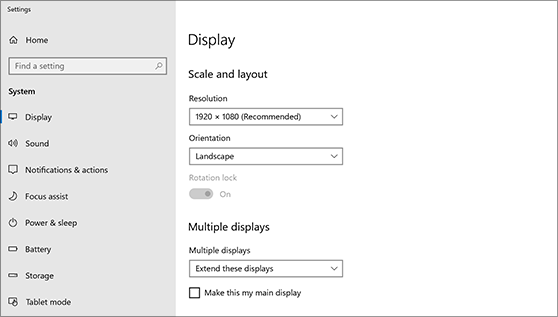
4. Scroll down to Multiple displays, then select an option from the drop-down list to determine how your desktop will display across your screens. For the largest work area, select Extend desktop.
5. Select Keep changes.
6. Scroll up to Resolution and select an option. We suggest that you use the recommended resolution settings.
7. Select Keep changes.
To rearrange monitors on Windows, use these steps:
Open Settings.
Click on System.
Click on Display.
Under the "Select and rearrange displays" section, drag and drop each display to rearrange them according to their physical layout on your desktop.
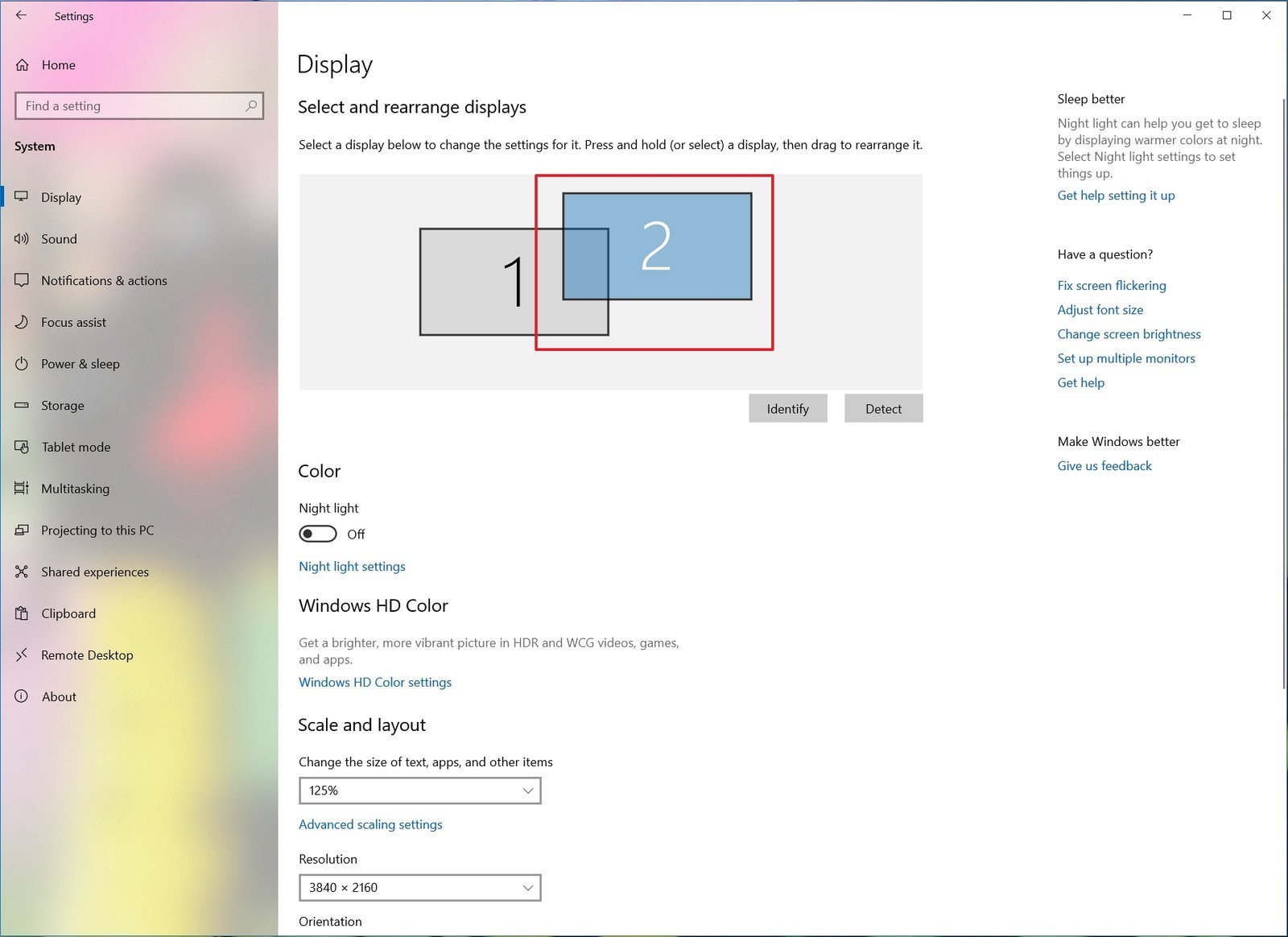
Quick tip: If you're not sure which monitor you're selecting, click the Identify button to figure out. If one of the monitors isn't showing up, make sure it's receiving power and connected correctly, and click the Detect button.
Click Apply