Microsoft Outlook is an email app available for download in the Android Play Store. We recommend using it due to its similarity to Outlook for Windows, it offers the smoothest login experience, is supported by Microsoft, and is free. To install it, open the Play Store app, search for "Microsoft Outlook", select it, and tap "Install".

Add An Email Account
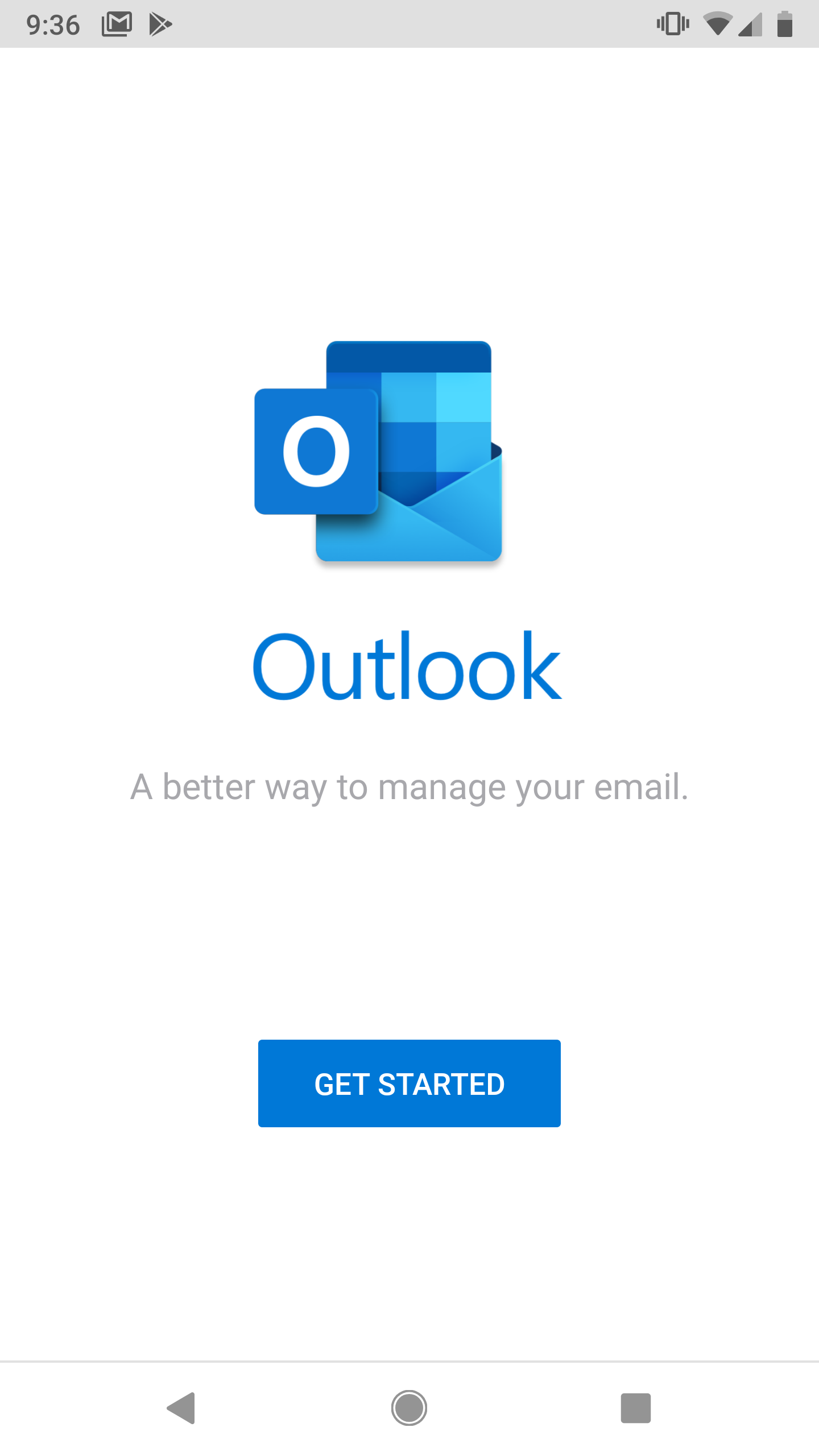
1. Open Microsoft Outlook for Android
2. Tap "Get Started"
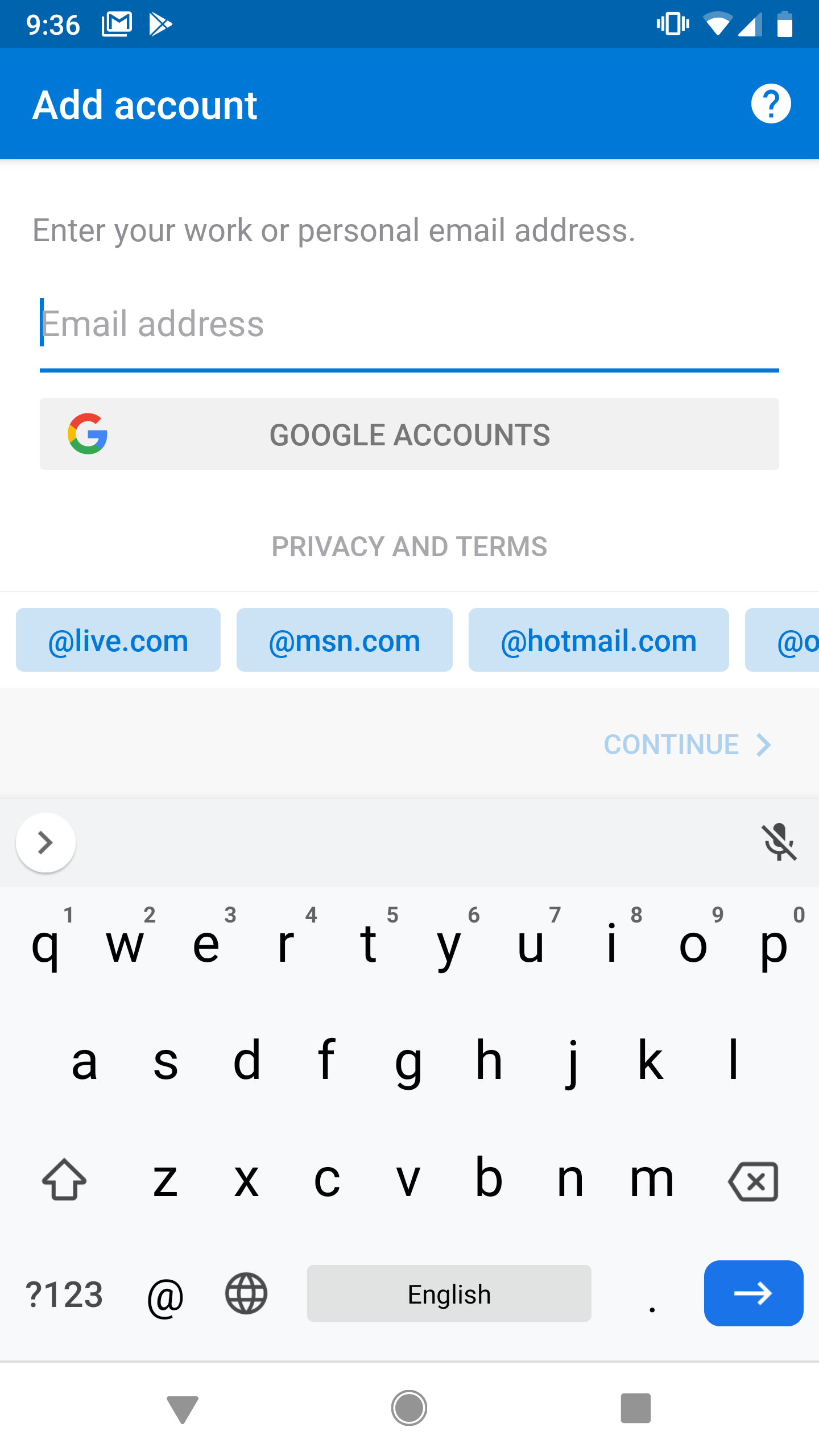
3. Enter your Delta email address in the Email Address field
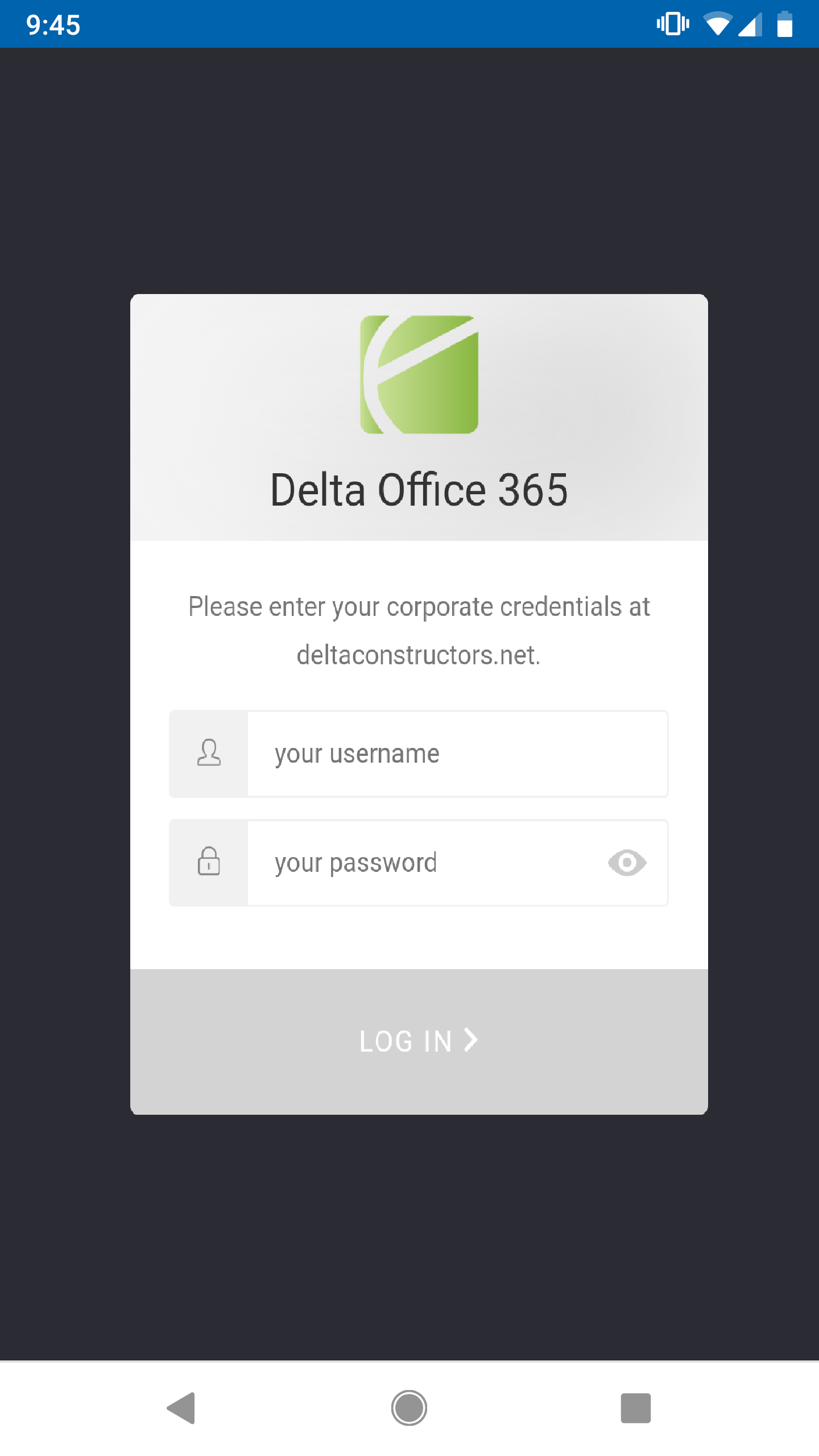
4. You will be redirected to a "Delta Office 365" login screen. Provide your corporate credentials here.
5. Next you'll see tip screens introducing Outlook features (Focused Inbox, Calendar, Search). Proceed to the finish or tap "Skip".
6. Your Delta email account is now set up in Microsoft Outlook For Android.
Remove An Email Account
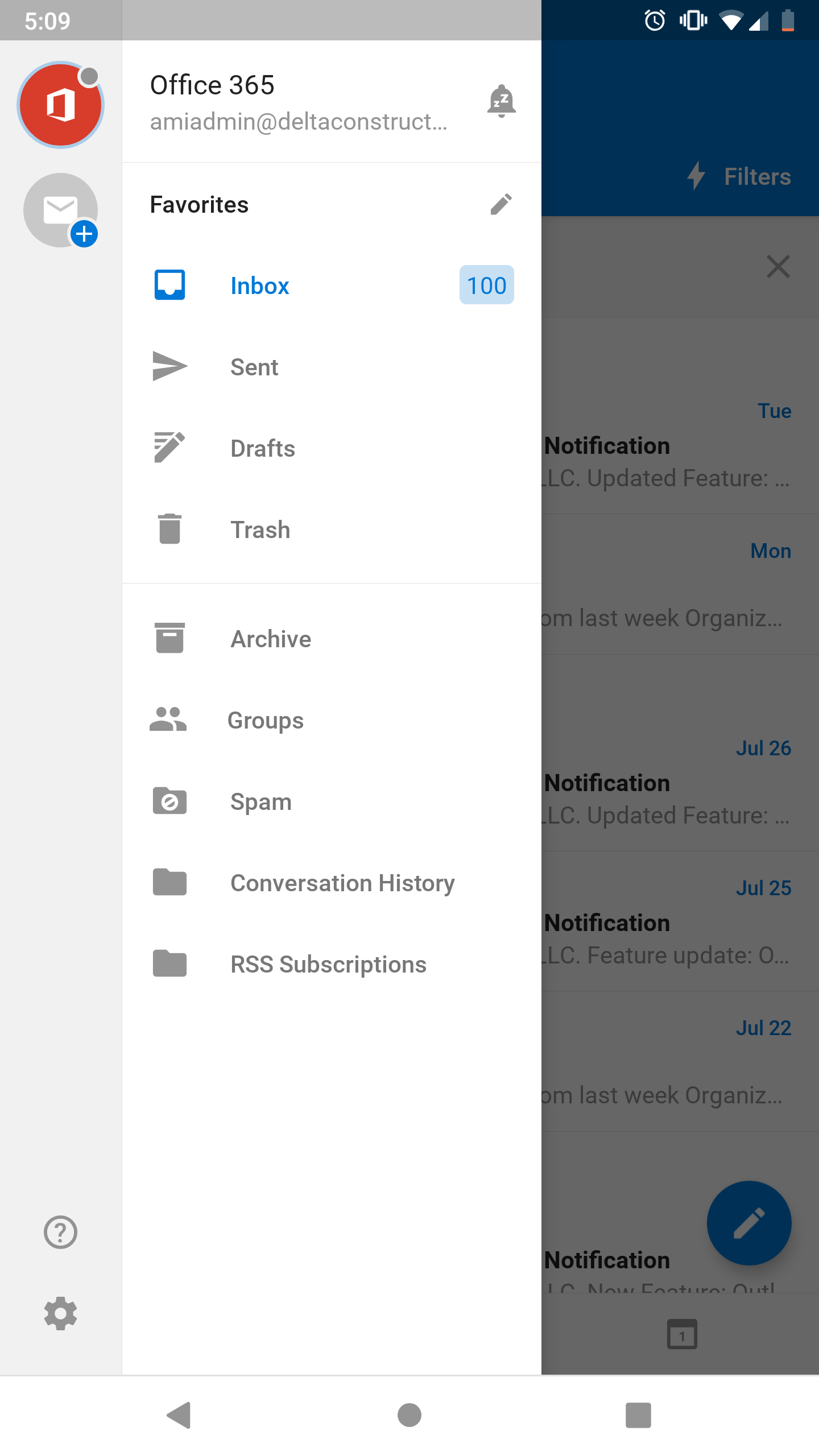
1. Tap the menu button on the top left
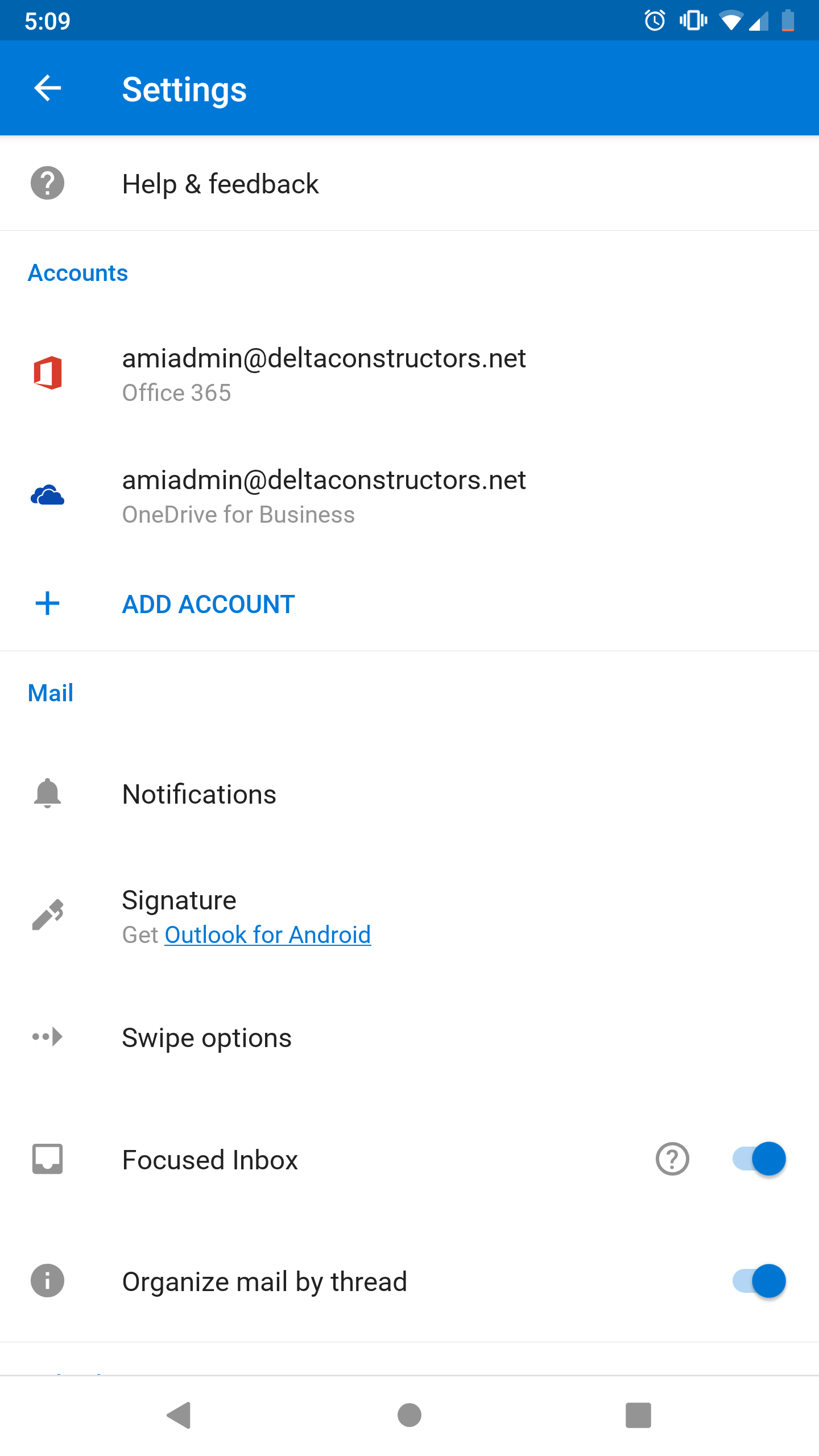
2. Tap the gear icon (settings) on the bottom left, and then select your account in the Accounts list.
 .
. 
3. Tap Delete Account, and confirm by tapping Delete once more when prompted.
 .
. 
4. Your email account and all associated data are now deleted from the phone, and you are free to set up a new account.