Microsoft Outlook is an email application available for download as part of the Office application suite in the Microsoft Office 365 web portal. To install it, go to https://portal.office.com, log in with your corporate credentials, and click "Install Office", then "Office 365 Apps". Run the downloaded file to begin installation.
Remove an Email Account
Removing, or deleting, an Office 365 email account from Outlook does not deactivate your email account or remove mail from your mailbox. It only removes the account from your machine, along with the local copy of your messages. There is still a copy in the cloud, unless you've created your own Archive data file on your computer.
1. Click File > Account Settings > Account Settings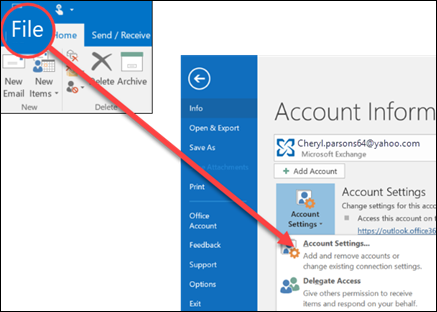
2. Highlight the account you wish to remove and click "Remove".
3. You will be notified that all downloaded data will be deleted from the computer. Click "Yes" to proceed and delete the account.
NOTE: An email profile (a set of email accounts that open in Outlook at one time) must contain at least one email account. If you're removing the last account from a profile, you should delete the profile.
Delete a profile:
1. Open Control Panel.
2. Change the display mode from "Categories" to "Large/Small Icons"
3. Click "Mail (Microsoft Outlook 2016) (32-bit)
4. Click "Show Profiles"
5. Click "Remove". This will remove the email profile and any email account data contained in it. Confirm by clicking "Yes".
6. Click "OK". You can now proceed to set up a fresh profile and email account below.
Add an Email Account
1. Open Outlook. You can do this by opening the Start Menu, typing "Outlook" in the search bar, and clicking "Outlook" in the results list.
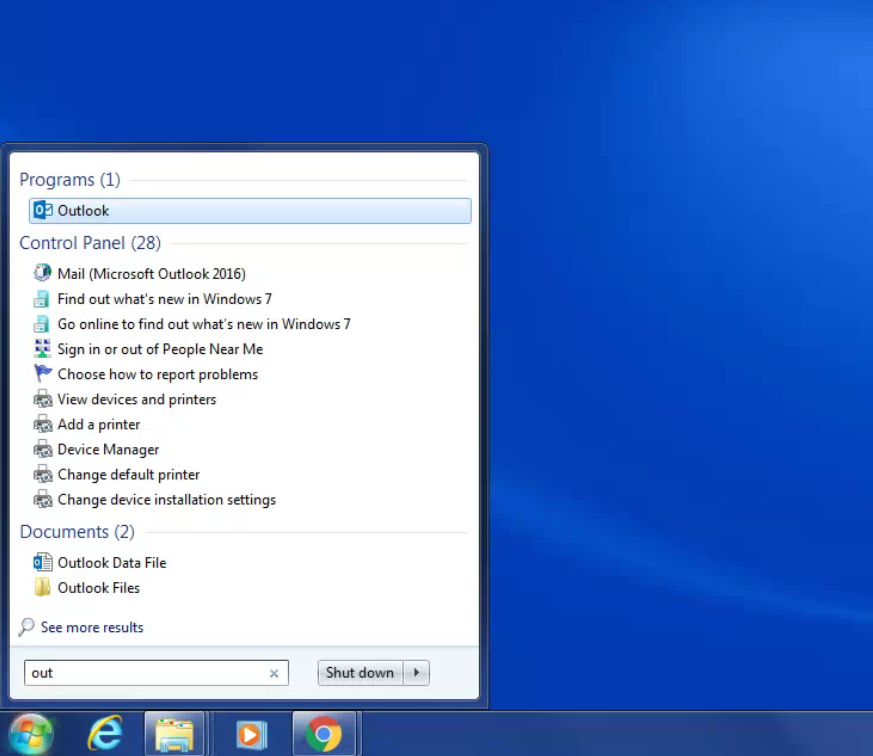
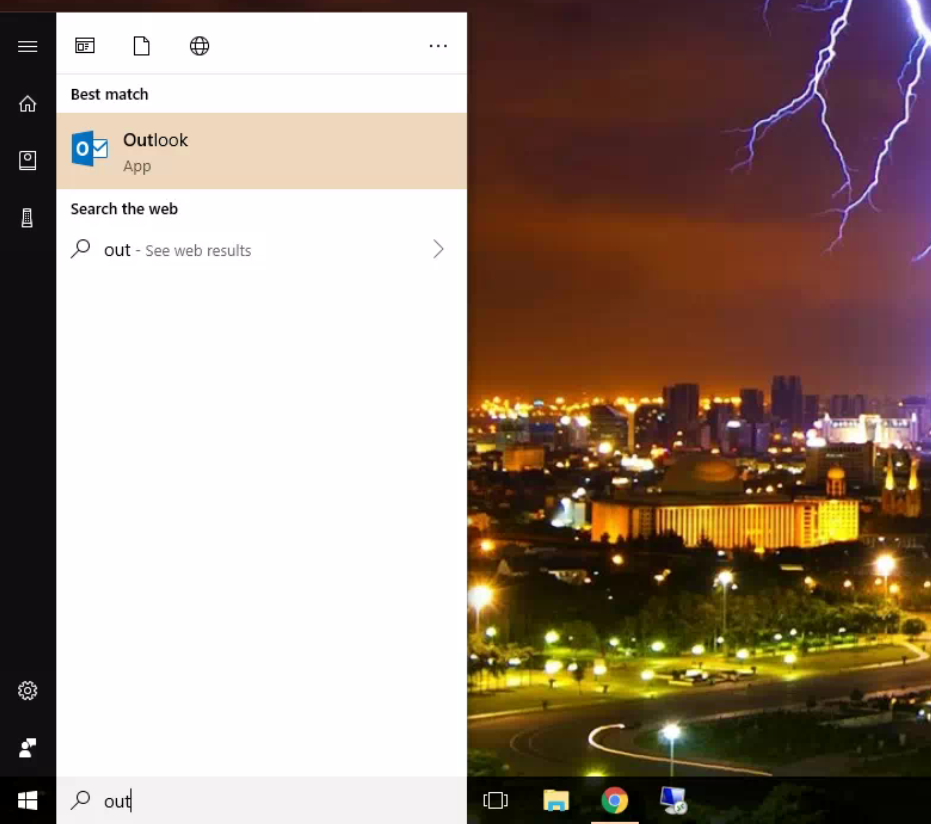
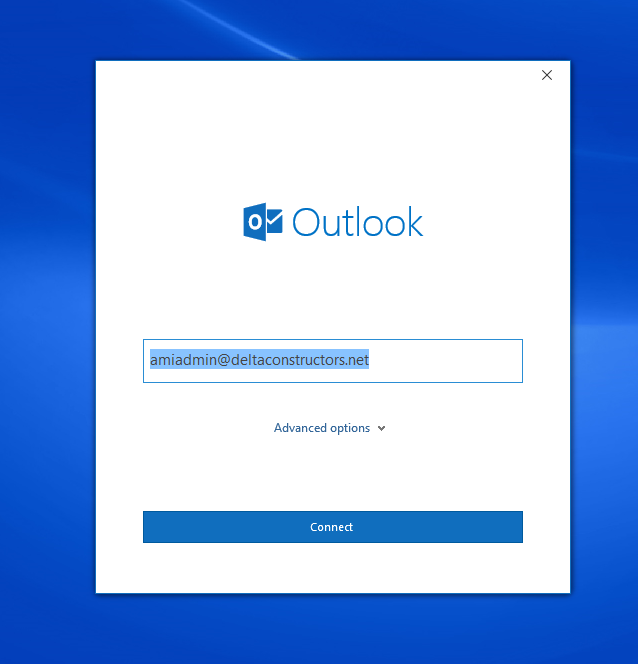
2. If no other accounts or profiles are configured, Outlook will prompt you to add an account when you launch it. Input your deltaconstructors.net email address here and click "Connect".
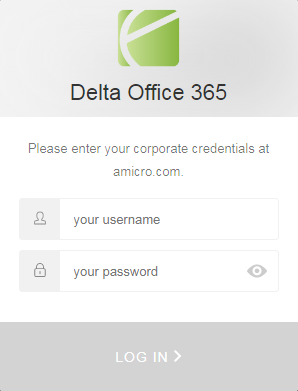
3. A "Delta Office 365" login prompt will appear. This will authenticate your identity to the Single Sign-On system. Input your email address and your corporate login password here. It will look something like this:
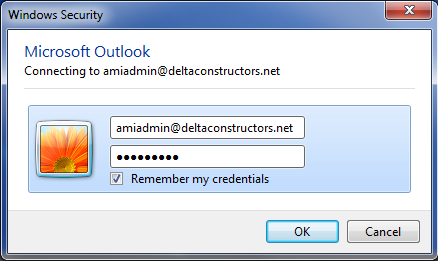
4-a. Windows 7 users: Outlook will ask you for your password one more time. Enter it here, and then check the "Remember my credentials" checkbox to not be asked again in the future.
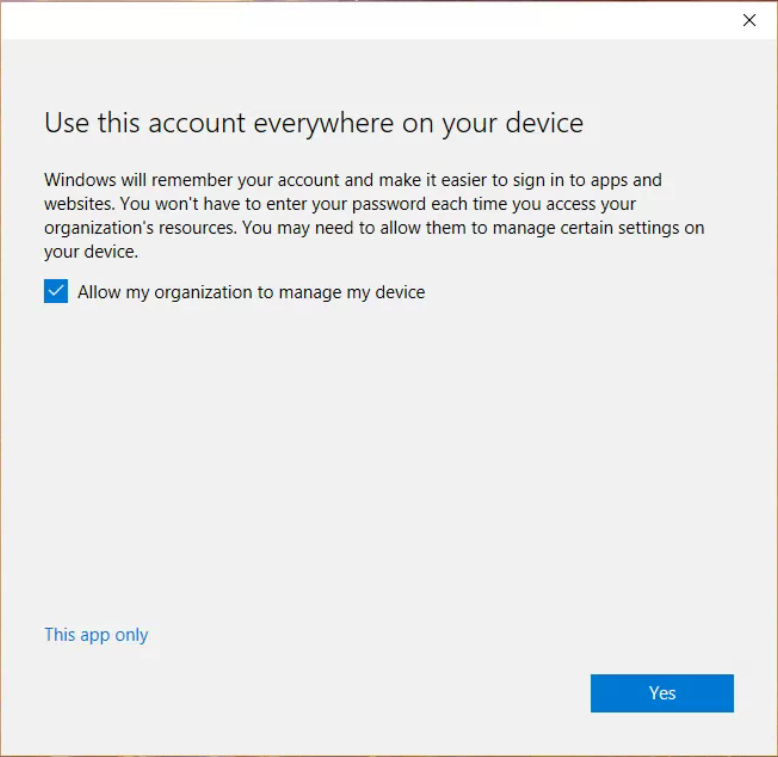
4-b. Windows 10 users: You will receive a prompt to integrate your Office 365 account with Windows. This is not recommended, as it can cause authentication issues with some online services. Uncheck "Allow my organization to manage this device" and then click "This app only".
5. Your account has been successfully added. Click "Done" on the confirmation screen, and your inbox will load.